Allowing TMB Website Pop-up Windows
When you browse the internet, you are sometimes presented with pop-up windows. Some are
designed to infect your computer with spyware. However, some websites, such as the
Texas Medical Board’s public website, use pop-ups as login windows or to display
information that the user has requested. In order to take advantage of such legitimate
pop-ups, it’s sometimes necessary to set your pop-up blocker to allow specific websites
to use pop-up windows.
Chrome
By default, Google Chrome blocks pop-ups from automatically showing up on your screen.
When a pop-up is blocked, the address bar will show a pop-up blocker icon, along with
information about which pop-up has been blocked.
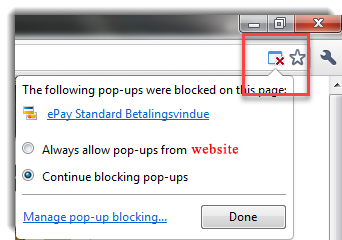
To allow pop-ups, follow the steps below:
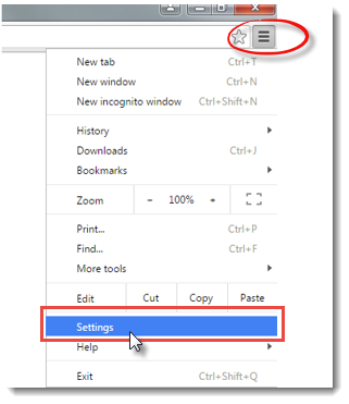
- Click on the menu icon to the right of the address bar and select Settings.
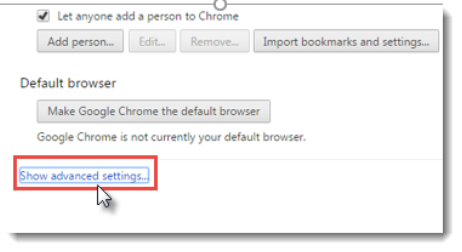
- Scroll down to the bottom of the page and click on Show advanced settings…
- Under Privacy, click on Content settings…
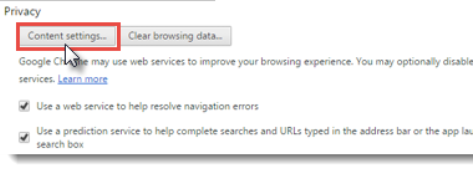
- Scroll down to Pop-ups and click on Manage exceptions...
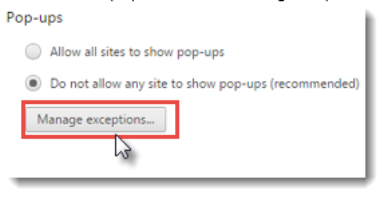
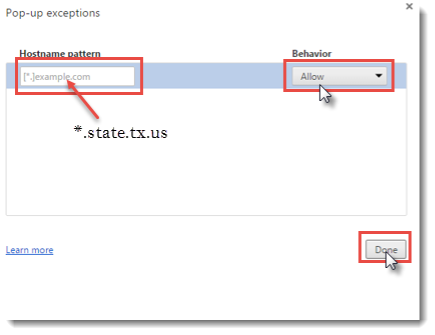
- In the Hostname pattern window, type: *.state.tx.us , Select Allow and then click on Done.
Firefox
Firefox allows you to control both pop-ups and pop-unders through the Content panel
in the Options window. Pop-up blocking is turned on by default.
- In the bottom toolbar, select Options.

- Select Content from the left hand menu and check the Pop-ups box, and then click the
Exceptions button.
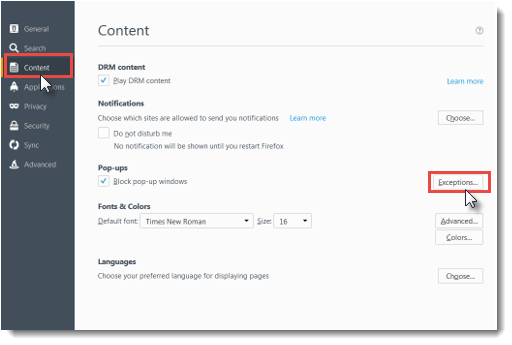
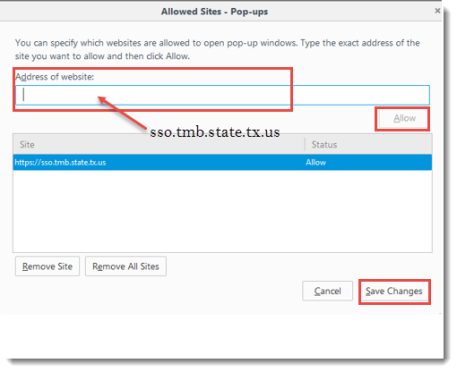
- In the “Address of website” field of the Allowed Sites window,
type: https://sso.tmb.state.tx.us Click Allow, then Save Changes.
Safari
A tip about unwanted pop-ups: If pop-ups persist on your Mac, you might have inadvertently
downloaded and installed adware (advertising-supported software). Some software that you
download from certain third-party download sites might include both the software that you
want and the adware.
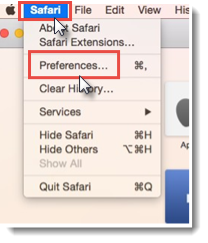
- Open Safari and click Safari on the menu bar at the top. Select Preferences from the drop down menu.
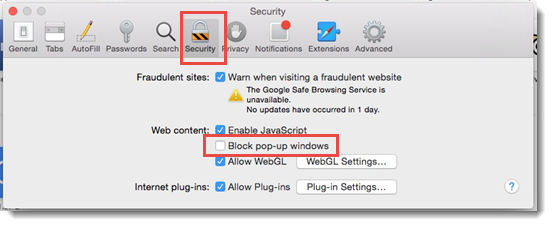
- At the top of the Security window, click on Security. UNCHECK the box for Block pop-up windows.
Microsoft Edge
Microsoft Edge is the new browser in Windows 10.
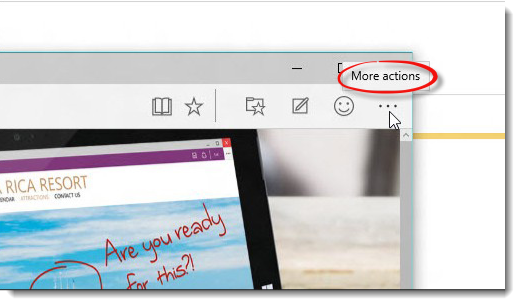
- In Microsoft Edge, click the three dots (More actions button) in the upper right hand corner.
- Click on the Settings button.
- Scroll down the list to select View advanced settings.
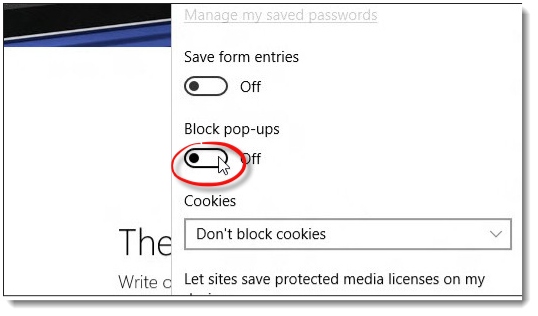
- Turn Block pop-ups to Off.
Internet Explorer (IE)
Internet Explorer will allow you to create a list of sites that you don't want to block pop-ups on.
Note that Pop-up Blocker settings only apply to Internet Explorer for the desktop.
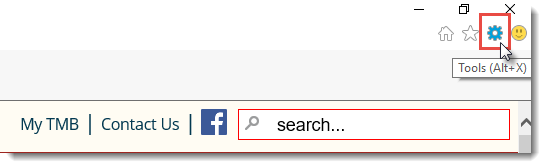
- Click on Settings in the top right hand of your Internet Explorer screen.
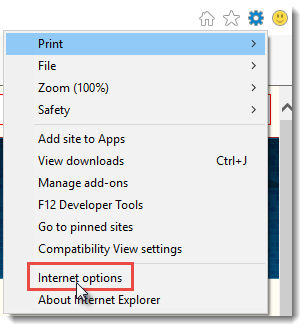
- From the drop down menu, select Internet Options.
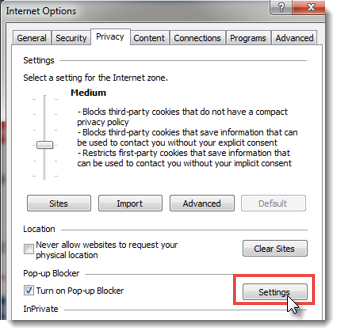
- In the Pop-up Blocker section, click on Settings.
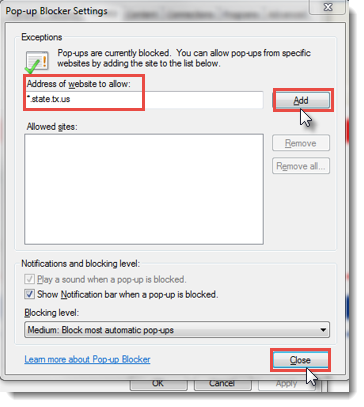
- In the “Address of website to allow” field, type *.state.tx.us. Then click Add and Close.