System Access
There are several different options once you have accessed the system. If you need assistance,
click on the area and follow the steps.
Login
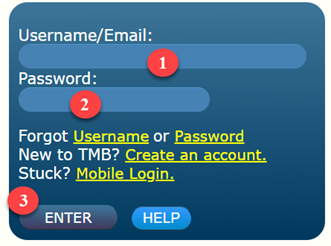
- Enter your Username. If you have created an account, your Username will be the email
address provided for the MyTMB account.
If you are new to TMB click on “Create an account.”
If you have created an account, but you do not know your username, select “Forgot Username”.
- Enter your Password or click on “Forgot Password” if unknown.
If you get stuck and you have already created an account, you can select “Mobile Login”.
- Click Enter.
HELP! I clicked ENTER and nothing happened. What should I do?
This may occur due to your pop-up blocker internet settings. Please review your browser settings to modify permissions to our site.
Creating an Account
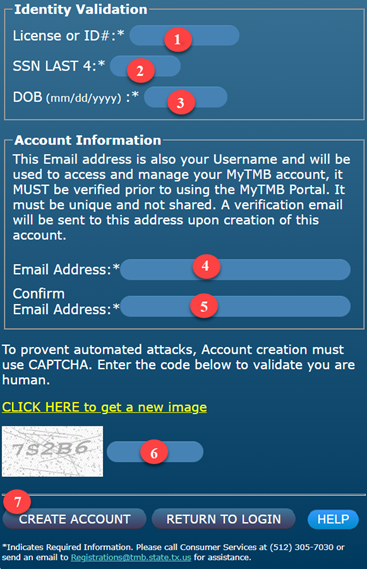
- Enter your TMB license or application ID number. If you are an APRN, please use your BON license number.
- Enter the last four (4) digits of your Social Security number.
- Enter your date of birth using the format as shown (mm/dd/yyyy).
- Enter your email address.
- Confirm your email address.Your email address is now your MyTMB USERNAME.
- Enter the CAPTCHA image or code displayed into the text box labeled 6. The text you enter is not case sensitive.
- Click CREATE ACCOUNT.
Your account has been created. A temporary password will be sent to your email address.
If you select RETURN TO LOGIN without
selecting CREATE ACCOUNT, your information will not be saved.
What if I don't have an email account?
If you do not have an email account and need one, you can sign up for one from one of these free providers:
Username Unknown
After you select Forgot Username, the following image will appear. Follow the steps listed below to recover your username.
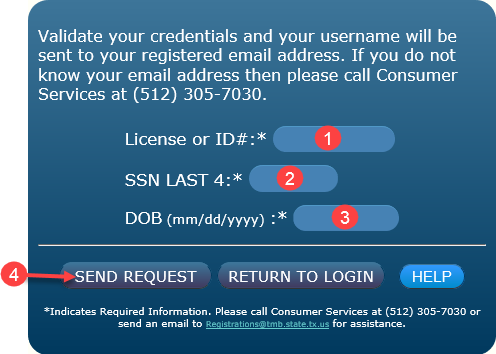
- Enter your TMB license or application ID number. If you are an APRN, please use your Board of Nursing license number.
- Enter the last four (4) digits of your Social Security number.
- Enter your date of birth using the format as shown (mm/dd/yyyy).
- Click “SEND REQUEST” to validate your credentials and have the username sent to your email address.
NOTE: If you select RETURN TO LOGIN without selecting
SEND REQUEST, your information will not be sent.
Password Unknown
If you have already set up your Security Questions, one of the questions will be picked for you to answer.
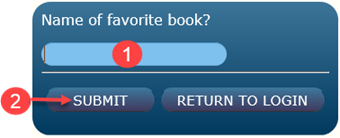
- Enter answer to question.
- Select SUBMIT. A temporary password will be sent to your email address.
If you have not set up the security questions, there are three ways to retrieve your forgotten password:
Option 1: Mobile
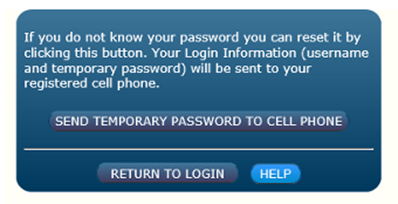
- Selecting the “Send temporary password to cell phone" will send a temporary password to the mobile number provided to the TMB,
if a mobile number has been provided.
- Selecting the “return to login” will take you back to the Login Screen.
Option 2: Email
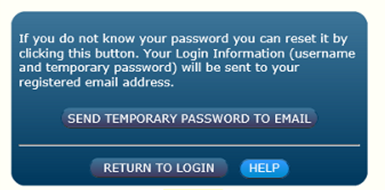
- Selecting the “Send temporary password to email” will send a temporary password to the email address provided to the TMB.
- Selecting the “return to login” will take you back to the Login Screen.
Option 3: Reset via credentials
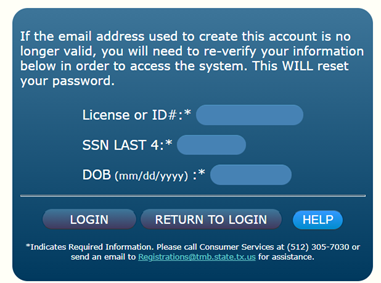
- Enter your TMB license or application ID number. If you are an APRN, please use your BON license number. This option is preferred
if the email address used to create account is no longer valid and mobile login was unsuccessful.
- Enter the last four (4) digits of your Social Security number.
- Enter your date of birth using the format as shown (mm/dd/yyyy).
- Select LOGIN.
Mobile Login
If you have already set up your account and have a mobile/cell phone number on file, you can validate your credentials, and have a
mobile login code sent your phone. If you did not receive a login code, you do not have a mobile/cell phone number on file.
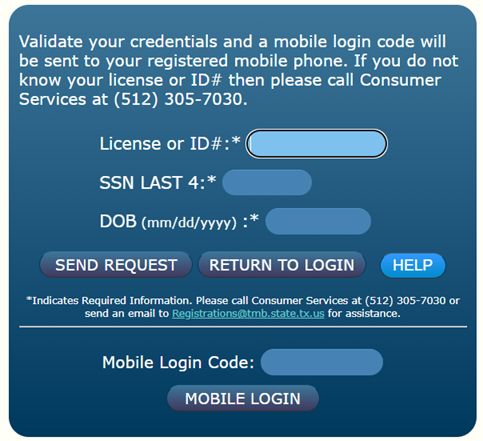
- Enter your TMB license or application ID number. If you are an APRN, please use your BON license number.
- Enter the last four (4) digits of your Social Security number.
- Enter your date of birth using the format as shown (mm/dd/yyy).
- Select SEND REQUEST.
- You will receive a temporary mobile login code to your cell phone. Once you have received the code, enter it into the Mobile Login Code area.
- Select Mobile Login.
- File: Help System Access
- Last Updated: 3/21/2023